
How to Scan a QR Code on a Computer (Windows and Mac)

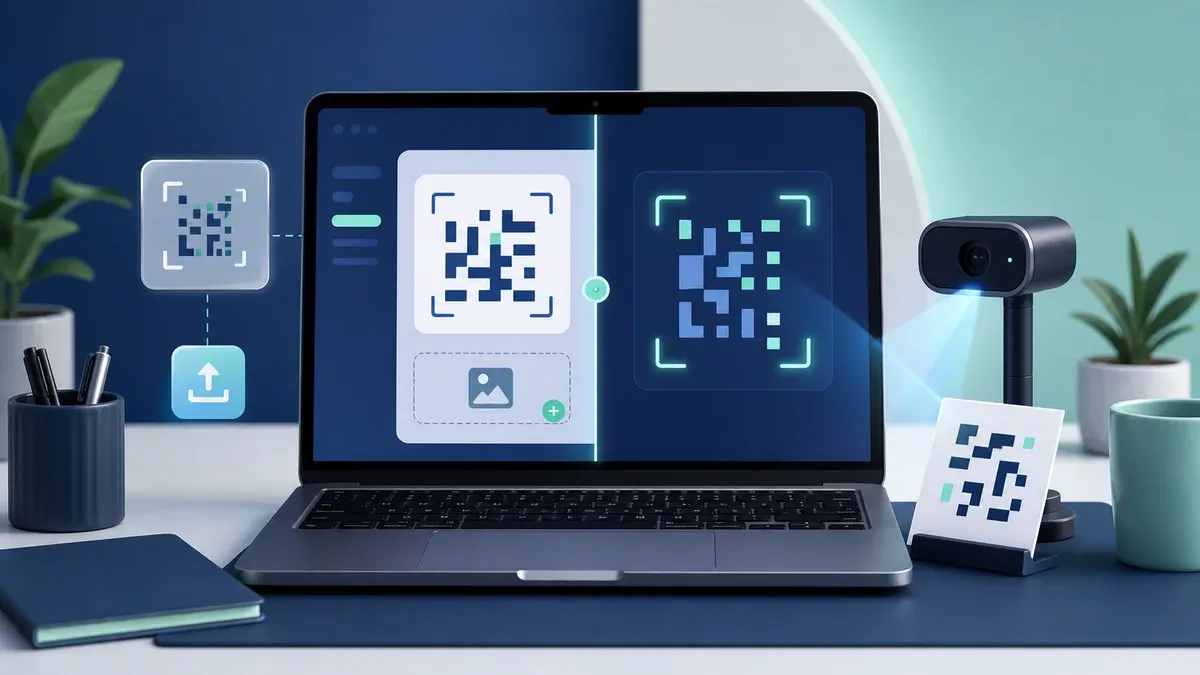
You can scan a QR code on a Windows PC or Mac without installing a desktop app. If the code is already on your screen, take a screenshot and upload it. If it is printed or shown on another device, use the computer’s webcam.
The best method for each situation
Use Image Scan when the QR code appears in a website, PDF, presentation, email, chat, or saved photo. A screenshot gives the detector a clean source and does not require camera permission.
Use Webcam Scan for a printed code or a code displayed on another device. Camera access requires your permission and normally works only on HTTPS pages or localhost.
Method 1: scan a screenshot
- Make sure the entire QR code is visible on screen.
- Capture a screenshot with the built-in screenshot controls on Windows or macOS.
- Open the Web QR Scan scanner and select Image Scan.
- Choose the screenshot and wait for the result.
- Verify the decoded text or domain before using it.
If the code is small, zoom in before capturing. Keep a blank margin around all four edges and avoid including a cursor or selection overlay. Our image and screenshot scanning guide explains how to crop difficult files.
Codes in websites, PDFs, and email
For a QR code embedded in a web page, screenshot only the visible code and its surrounding margin. Do not rely on copying the image if the site provides only a low-resolution thumbnail.
In a PDF, increase the zoom until individual edges look sharp, then capture the full code. If the document offers an original image or download, that source may work better than a screenshot. For email, treat unexpected QR codes like unexpected links: inspect the result before opening it, particularly when the message asks you to sign in or pay.
Method 2: scan with the webcam
- Open Web QR Scan and choose Webcam Scan.
- Allow camera access when the browser asks.
- Hold the printed code or other screen in front of the webcam.
- Keep the code flat, steady, and well lit until a result appears.
- Stop the camera when finished.
Move the code closer only until the camera can still focus. Avoid reflections from glossy paper and screen glare. If the browser lists more than one camera, select the one facing the code.
Windows and Mac notes
The browser workflow is the same on Windows and macOS: use an up-to-date browser, choose a local image, or grant camera permission for live scanning. Screenshot keyboard shortcuts differ by operating system, but the resulting PNG or image file can be selected in the same way.
If camera scanning fails, check the camera permission in both the browser and operating-system privacy settings. Close other meeting or camera applications that may be using the webcam. On a work-managed computer, organizational policy may block camera access; image upload is a practical fallback.
Choose between screenshot and webcam scanning
A screenshot is usually the first choice when the code is already digital. It preserves the source pixels, avoids reflections and webcam focus, works without camera permission, and lets you crop one code from a busy page. It is also useful when a laptop lid or external webcam cannot be aimed conveniently.
The webcam is better when the source cannot be saved: a parcel label, poster, product package, visitor badge, or another person’s phone. It gives immediate feedback while you adjust distance and angle. It may be less reliable for very small screen codes because display pixels and camera pixels can create moiré patterns.
If the information is sensitive, consider which workflow exposes less of your screen. A screenshot may include notifications, account names, or nearby document content, so crop it before selecting the file. A webcam can capture more of the room than the target; aim it carefully and stop the media stream after use.
Working with multiple monitors and remote desktops
On a multi-monitor setup, capture the window or region containing the QR code rather than the entire desktop. This creates a larger target and avoids accidental disclosure of unrelated applications. Make sure the operating system did not scale the captured image down when copying it to a clipboard or chat.
In a remote desktop or virtual machine, screenshot quality may be reduced by session compression. Capture the code on the computer where it is originally displayed when possible, then transfer only the required image through an approved method. Camera redirection may also be disabled by remote-session or company policy; image mode does not depend on camera redirection.
What the result can contain
A successful scan may return a web address, plain text, contact information, Wi-Fi configuration, or another encoded value. The browser scanner shows what was decoded but does not guarantee that the content is current or safe. A QR code for an expired meeting or moved page can decode perfectly while its destination fails. Keep that distinction in mind before troubleshooting the camera again.
Troubleshooting
- Nothing is detected: enlarge the on-screen code or move the printed code into better light.
- The screenshot fails: recapture it with the full quiet zone and without overlays.
- Camera permission was denied: change the site’s permission, reload, and start webcam scanning again.
- The camera is black or unavailable: close other camera apps and confirm that the correct input is selected.
- A local network address does not open the camera: use the HTTPS version of the site. Camera APIs require a secure context except on localhost.
- The result is unexpected: do not open it; confirm that you scanned the intended symbol.
See QR code not scanning: common fixes for image-quality, printing, and compatibility checks.
Privacy and security
Web QR Scan performs decoding in the browser. Selected images and decoded values are not intentionally uploaded to our server for recognition, and live camera frames are processed locally. The browser still downloads normal site resources.
QR codes in invoices, account alerts, delivery messages, or shared documents can lead to phishing pages. Check the complete domain, use a password manager as an additional warning signal, and avoid entering secrets on a page you reached from an unverified code.
Frequently asked questions
Do I need a phone to scan a QR code on my PC?
No. Upload a screenshot when the code is on the computer, or use the webcam when it is printed or on another screen.
Can I scan a code shown on the same computer?
Yes. Screenshot upload is designed for this situation and is usually more reliable than trying to point the webcam at the same display indirectly.
Do I need to install software?
No. A current browser is sufficient. Read more about scanning without an app.
Is webcam scanning private?
Camera access is controlled by the browser, and Web QR Scan processes frames locally for detection. Stop the scanner when you are finished and revoke permission if you do not want it retained.
Can a computer scan barcodes too?
Yes, the scanner supports common 1D and 2D barcode formats. A clear, close image is especially important for narrow one-dimensional bars.
Scan on your computer
Open the free browser scanner, then choose image upload or webcam scanning for the source in front of you.