
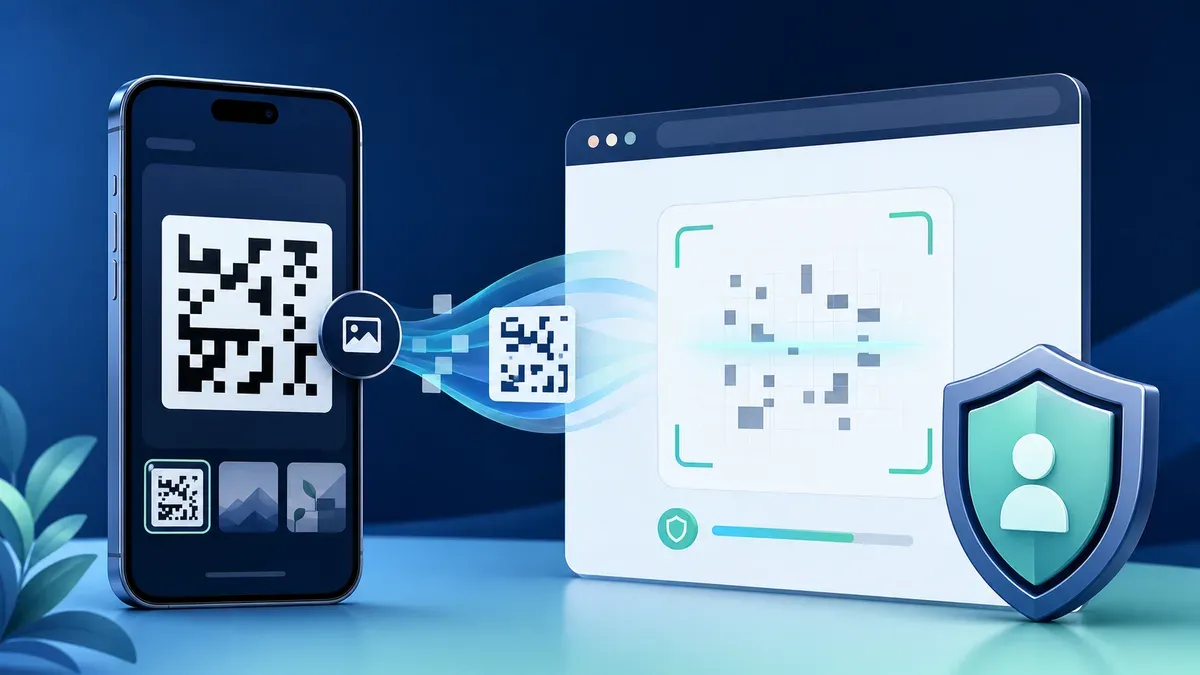
How to Scan a QR Code from an Image or Screenshot

A QR code does not have to be in front of your camera. If it is already saved as a photo, screenshot, email attachment, or document image, you can decode it by uploading the file to a browser-based scanner. This is often easier than pointing one device at another screen.
Quick answer
Open the Web QR Scan image scanner, choose Image Scan, select the image, and wait for the result. Processing happens in your browser; Web QR Scan does not require you to create an account or upload the image to a remote recognition service.
Before opening a decoded link, check its domain and destination. A QR code is only a compact way to store data—it does not prove that the destination is trustworthy.
How to scan a saved QR code
- Save the original image or take a screenshot that includes the complete code.
- Open Web QR Scan in a current browser.
- Select Image Scan, then choose the photo or screenshot.
- Give the scanner a moment to detect and decode the symbol.
- Review the result before copying text or opening a URL.
You can repeat the process with another crop if the first attempt fails. No camera permission is needed for image scanning.
Make a screenshot easier to decode
Keep all four corners visible and leave some blank space around the code. This surrounding margin is called the quiet zone and helps the detector separate the symbol from nearby content. Crop away unrelated page content, but do not cut into the code or its margin.
Use the original screenshot rather than an image that has been sent repeatedly through messaging apps. Compression, resizing, and sharpening filters can merge the small light and dark modules. If a code appears tiny on a web page or in a PDF, zoom in first and take a new screenshot. Avoid drawing, highlighting, or placing a cursor over it.
Photos, documents, and email attachments
For a camera photo, straighten the image as much as possible. Even lighting, sharp focus, and low glare matter more than a very high pixel count. When the code is printed on glossy packaging, move the light source or change the camera angle so a reflection does not cover the center or corner markers.
For codes in PDFs or emails, use the highest-quality embedded image when it is available. On a computer, a clean screenshot is usually the fastest route; see our guide to scanning QR codes on a computer.
Why an image may not scan
Common causes include:
- part of the code or its quiet zone is missing;
- the image is blurred, heavily compressed, or too small;
- glare, a shadow, or a sticker covers important modules;
- foreground and background colors have weak contrast;
- the code is stylized beyond what the detector can reliably read;
- several codes are present and the intended one is too small;
- the file contains a format the scanner does not recognize.
Try a tighter but complete crop, a higher-resolution source, or a fresh photo. Do not assume that enlarging a severely blurred image restores missing detail. For a systematic checklist, use QR code not scanning: fixes that work.
A practical workflow for difficult images
Start with the least altered version of the file. Try the original once before editing, because unnecessary enhancement can make a valid code worse. If it fails, duplicate the file so the original remains available. Crop to one complete code, preserving a visible border, then try again.
Next, check actual detail rather than the displayed size. A large preview may still be based on a tiny thumbnail. Return to the email attachment, document download, or original photo instead of saving the preview. When a code is embedded in a PDF, compare a high-zoom screenshot with any export option and use the sharper result.
For a photo, correct orientation and moderate perspective before applying contrast. Avoid aggressive noise removal, beauty filters, or artificial sharpening: QR modules are deliberate hard-edged shapes, and filters may invent or erase edges. Converting a color image to grayscale can sometimes reduce distracting color, but it cannot repair covered areas.
Finally, separate a recognition problem from a destination problem. If the scanner returns a URL, text, or identifier, the image has been decoded successfully. A page that subsequently reports an error, an expired ticket, or invalid credentials is controlled by the destination or issuer. Repeatedly scanning the same image will not repair that external result.
Common image sources and the best approach
For a social-media post, open the highest-quality version before saving; feed thumbnails are often compressed. For a digital ticket, use the original ticket screen or attachment and avoid publishing the result. For a printed notice, take a new straight photo in diffuse light. For a presentation or video, pause on a frame where the entire code is stable, then capture a screenshot. For a very large image, crop to the code to reduce competing visual detail without cutting off its margin.
Privacy and safety
Image scanning is useful for tickets, account setup codes, payment requests, and internal documents, so privacy matters. Web QR Scan performs recognition locally in the browser. Your selected image and decoded value are not intentionally sent to our server for scanning. Your browser may still make ordinary requests needed to load the website.
Treat the decoded content cautiously. Check shortened links, look for misspelled domains, and never enter credentials merely because a QR code opened a familiar-looking page. If the result is a Wi-Fi password, authentication secret, or personal identifier, avoid sharing screenshots of it.
Frequently asked questions
Can I scan a QR code from a screenshot on the same phone?
Yes. Save the screenshot, open the image scanner, and select it from your photo or file picker. You do not need a second phone.
Does image scanning need camera permission?
No. Camera permission is only needed for live webcam scanning.
Should I crop the image?
Crop if the code occupies only a small part of the image, but keep all four sides and a clear margin. A complete, sharp crop is better than an extremely tight one.
Can an image contain more than one code?
Detection may select one symbol unpredictably. Crop the image so only the code you want remains.
Why does a screenshot fail even though it looks clear?
The code may be incomplete, too small, low contrast, covered by an overlay, or invalid at its source. Zooming in and capturing it again often helps.
Scan your image now
Use the free image scanner to decode a saved QR code or barcode. Select the file, inspect the result, and verify any destination before opening it.