
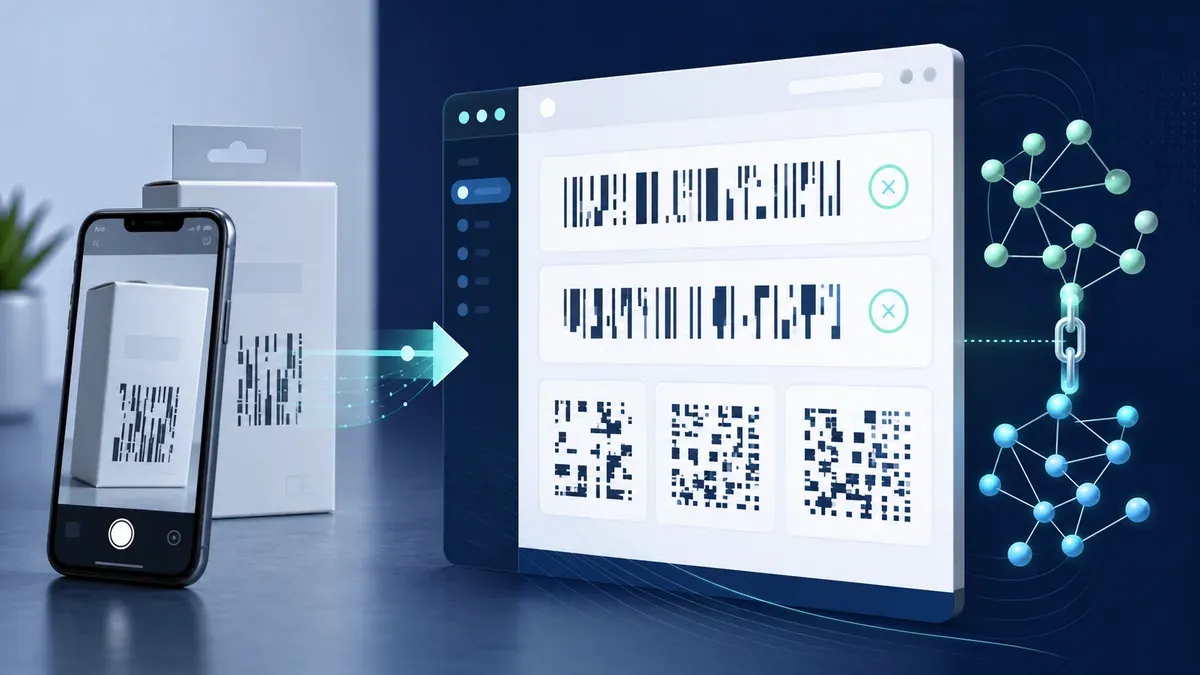
How to Scan a Barcode from an Image Online

To read a barcode from a saved photo or screenshot, upload it to the image scanner and inspect the decoded value. Web QR Scan supports common retail, logistics, industrial, and two-dimensional formats, and performs recognition locally in your browser.
Scan a barcode image in five steps
- Photograph, download, or screenshot the complete barcode.
- Open the online barcode scanner.
- Choose Image Scan and select the file.
- Wait for the decoded data to appear.
- Check the value against the label or source before using it.
For long one-dimensional barcodes, use a close, sharp image in which individual bars remain separate. Keep the left and right margins visible.
Supported barcode formats
The current scanner can detect QR Code plus these common formats:
- UPC-A and UPC-E, often used on retail products;
- EAN-13 and EAN-8, widely used for retail identifiers;
- Code 128 and Code 39, common in inventory and logistics;
- Data Matrix, a compact two-dimensional symbol used in manufacturing and labeling;
- PDF417, a stacked two-dimensional barcode used where more data is required;
- Aztec, a compact two-dimensional format with a central finder pattern.
Support means the scanner can decode a sufficiently clear, valid symbol. It does not guarantee that every damaged, tiny, reflective, or stylized label will be readable.
A barcode usually does not contain a product name
A retail barcode commonly encodes an identifier such as a GTIN. The bars do not normally contain the product name, price, ingredients, reviews, or current store inventory. Those details come from a separate database that associates the identifier with a product record.
Therefore an online decoder may correctly return a number without displaying a product description. Web QR Scan decodes the symbol; it does not claim to provide a global product lookup database. Prices can also differ by retailer and are not inherently stored in a UPC or EAN symbol.
For a clearer comparison of capacity and use cases, read QR codes vs barcodes.
Take a barcode photo that scans
Fill a useful portion of the frame while keeping the complete barcode and its blank margins. Hold the camera parallel to the label so the bars do not become severely skewed. Tap to focus when your camera supports it and use diffuse light rather than a bright reflection.
Avoid motion blur. A long barcode needs enough horizontal detail to preserve every narrow bar and space. Messaging-app compression can remove this detail, so use the original image when possible. For a barcode on a screen, zoom in and take a clean screenshot.
Troubleshooting failed barcode images
- Rotate the image so the bars are upright or horizontal rather than strongly diagonal.
- Crop unrelated packaging, but retain both quiet margins.
- Retake a glossy label from a different angle to remove glare.
- Flatten wrinkled packaging without covering the symbol.
- Use the original resolution instead of a social-media thumbnail.
- If several symbols are present, crop to the one you need.
- Confirm that printed digits are not mistaken for the decoded data; the bars themselves must remain readable.
If the symbol is torn or scratched, try another copy of the label. Increasing contrast may help a faded photo, but aggressive filters can also merge narrow bars.
Understand the decoded value
Before copying the result into another system, identify the barcode type and the context in which it is used. A retail identifier, warehouse location, shipment reference, asset number, and ticket payload may look similar as plain text but have very different meanings. Preserve leading zeros: removing them can change a UPC, EAN, or internal identifier.
Some formats include a check digit that helps detect reading or typing errors. A valid check digit supports the integrity of the identifier but does not prove that the physical label is genuine or that a database record is accurate. If the value will trigger inventory, shipping, access, or payment activity, compare it with the human-readable label and use the organization’s authorized system.
Code 39 and Code 128 commonly carry letters or operational strings as well as digits. Data Matrix, PDF417, Aztec, and QR Code can hold richer content depending on the application. The decoder returns the encoded data; interpreting field separators, industry application identifiers, or proprietary records may require documentation from the issuer.
Batch work and record keeping
The web scanner is designed for one visible result at a time, not unattended bulk inventory processing. When checking several images, give each file an unambiguous name, scan it separately, and verify the result before moving on. Do not assume the scanner selected the intended symbol when a shipping label contains several barcodes.
For business records, keep the source image only as long as your privacy and retention policy permits. A barcode photo may reveal customer names, addresses, order references, or internal locations even when the decoded value is harmless. Store results in the approved inventory or logistics system rather than an informal shared document.
Barcode photo versus manual entry
Image decoding reduces transcription work, especially for long values, but it should not eliminate validation. Manual entry may be faster for a short, clearly printed number when the bars are badly damaged. Conversely, a good image avoids confusing similar characters and preserves leading zeros. Choose the method that produces a verifiable result, not simply the first result.
Privacy and safe use
Selected images and decoded results are processed locally for recognition and are not intentionally uploaded to our server. This is useful for internal inventory labels, shipping documents, and other images you may not want to submit to a lookup service.
Still consider what the decoded value represents. A PDF417 or Data Matrix symbol can hold more data than a simple retail identifier. Do not publish results containing personal, ticketing, or operational information. If a result is a URL, verify it before opening.
Frequently asked questions
Can I identify a product from its barcode image?
You can decode its identifier if the symbol is supported and clear. Turning that identifier into a product name requires a separate, accurate database.
Why do I only see a number?
That is normal for UPC and EAN barcodes. The number is typically the identifier encoded by the bars.
Can I scan a screenshot instead of a photograph?
Yes. A direct screenshot is often sharper, especially when the barcode is displayed in a PDF, email, or web page.
Does the scanner support QR codes too?
Yes. QR Code is supported alongside the listed one- and two-dimensional formats.
Why are the printed digits readable but the scan fails?
Humans may read the text while the narrow bars are blurred, cropped, or distorted. Retake the image with better focus and complete margins.
Decode a barcode image
Open the free image barcode scanner, select your file, and verify the decoded identifier against its source.