
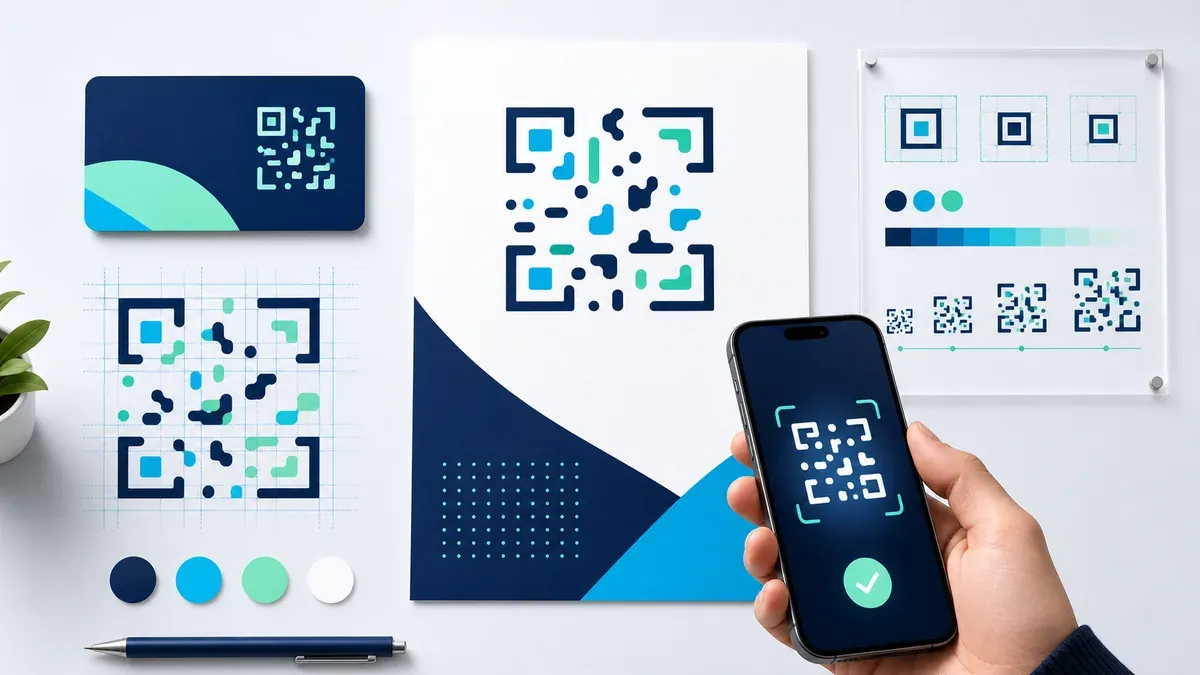
How to Create a QR Code That Scans Every Time

Introduction
Not all QR codes are created equal. A QR code that looks perfectly fine on a designer’s screen can become completely unscannable when printed on a dark background, scaled too small, or placed on a reflective surface. Understanding the technical requirements behind a reliable QR code saves time and prevents failed scans in real-world conditions.
This guide covers the practical rules that every QR code creator should follow — from size and contrast to error correction and quiet zones.
Rule 1: Minimum Size Matters
The physical or pixel size of a QR code determines whether a camera can resolve enough detail to decode it. As a rule of thumb:
- Print: minimum 2 cm × 2 cm (about 0.8 inches). For codes scanned from a distance (posters, signage), scale proportionally — a code on a billboard may need to be 20 cm or larger.
- Screen: minimum 100 × 100 pixels. For high-DPI displays, 200 × 200 pixels is safer.
- Business cards: 2.5 cm × 2.5 cm is reliable for handheld scanning distance.
Smaller than these minimums, and camera autofocus cannot resolve individual modules (the small squares that make up the code), leading to scan failures.
Rule 2: Maximum Error Correction
QR codes offer four error correction levels:
| Level | Recovery Capacity | Recommended Use |
|---|---|---|
| L (Low) | ~7% | Digital screens only, never print |
| M (Medium) | ~15% | Clean indoor print |
| Q (Quartile) | ~25% | Outdoor print, some wear expected |
| H (High) | ~30% | Logo overlay, merchandise, harsh environments |
For anything printed on physical materials, use Level Q or H. The slight increase in code complexity (more modules) is negligible compared to the resilience it provides. High error correction also enables placing a small logo in the center without breaking the code.
Rule 3: Contrast Is Non-Negotiable
QR code scanners work by detecting the contrast between dark modules and a light background. The requirements:
- Minimum contrast ratio: 4:1 (dark modules vs. background)
- Safe defaults: black modules on white background
- Avoid: dark background with dark modules, pastel-on-pastel, or printing on metallic foil
You can use colors other than black — dark navy, dark green, or dark maroon work well against a white background. What you must not do is invert the code (light modules on dark background) unless your QR generator explicitly supports inverted codes, because most scanners assume a light background.
Rule 4: Respect the Quiet Zone
The quiet zone is the mandatory margin of empty space around all four sides of a QR code. It must be at least 4 module widths wide.
This white border allows scanners to detect where the code begins and ends. If you clip the quiet zone — by placing the QR code too close to text, imagery, or the edge of a page — many scanners will fail to locate the code at all, even if the modules themselves are perfect.
In design software, always add a white background box that extends at least 4 modules beyond the code boundary before placing it on top of any colored or textured background.
Rule 5: Keep the URL Short
The more data a QR code encodes, the more modules it requires — and the denser, smaller, and harder to scan the code becomes. Long URLs are the most common cause of unnecessarily complex QR codes.
Practical approaches:
- Use a URL shortener (bit.ly, your own short domain) to reduce character count
- Avoid unnecessary query parameters in URLs
- Remove
www.if the server handles it automatically - For tracking, use UTM parameters but keep them concise
A QR code encoding https://webqrscan.com is significantly simpler than one encoding https://www.webqrscan.com/products/scanner?utm_source=print_campaign&utm_medium=flyer&utm_campaign=summer2025.
Rule 6: Test Before Printing
Before sending anything to a print shop:
- Export at 300 DPI minimum for print
- Test with multiple scanning apps and devices (different camera qualities, different operating systems)
- Test in the same lighting conditions as the final environment
- If printing at a new size, physically print a test sheet and scan it from the expected distance
Web QR Scan is useful for quick testing — upload the exported image file to verify it decodes correctly before committing to print.
Common Mistakes to Avoid
- Placing a logo that is too large: Keep logo overlays to a maximum of 20–25% of the total code area, or switch to error correction level H
- Printing on textured materials: Embossing, linen textures, and canvas weaves can break individual modules
- CMYK color shift: Colors that look correct in RGB on screen may print differently in CMYK. Always do a physical print proof.
- Low-resolution export: Always export SVG or at minimum 300 DPI PNG for print
Conclusion
A QR code that fails to scan is worse than no QR code at all — it creates user frustration and damages trust. Following these six rules — correct size, high error correction, strong contrast, proper quiet zone, short URL, and pre-print testing — will make your QR codes reliably scannable on every device, in every lighting condition.
Need to verify a code you’ve just created? Upload the image to webqrscan.com to check it decodes correctly before it goes to print.